
Add a question or a paid product to your registration form: choices, price, stock, races concerned and the deadline after which participants can no longer edit their answer.
Options are the questions you ask your participants and the products you sell them: meals, T-shirts, shuttles, insurance.
You add them from the Options page of your edition, and you choose the races concerned.
Choose the type of option
In the edition menu, open Configuration › Options.
Click Add an option.
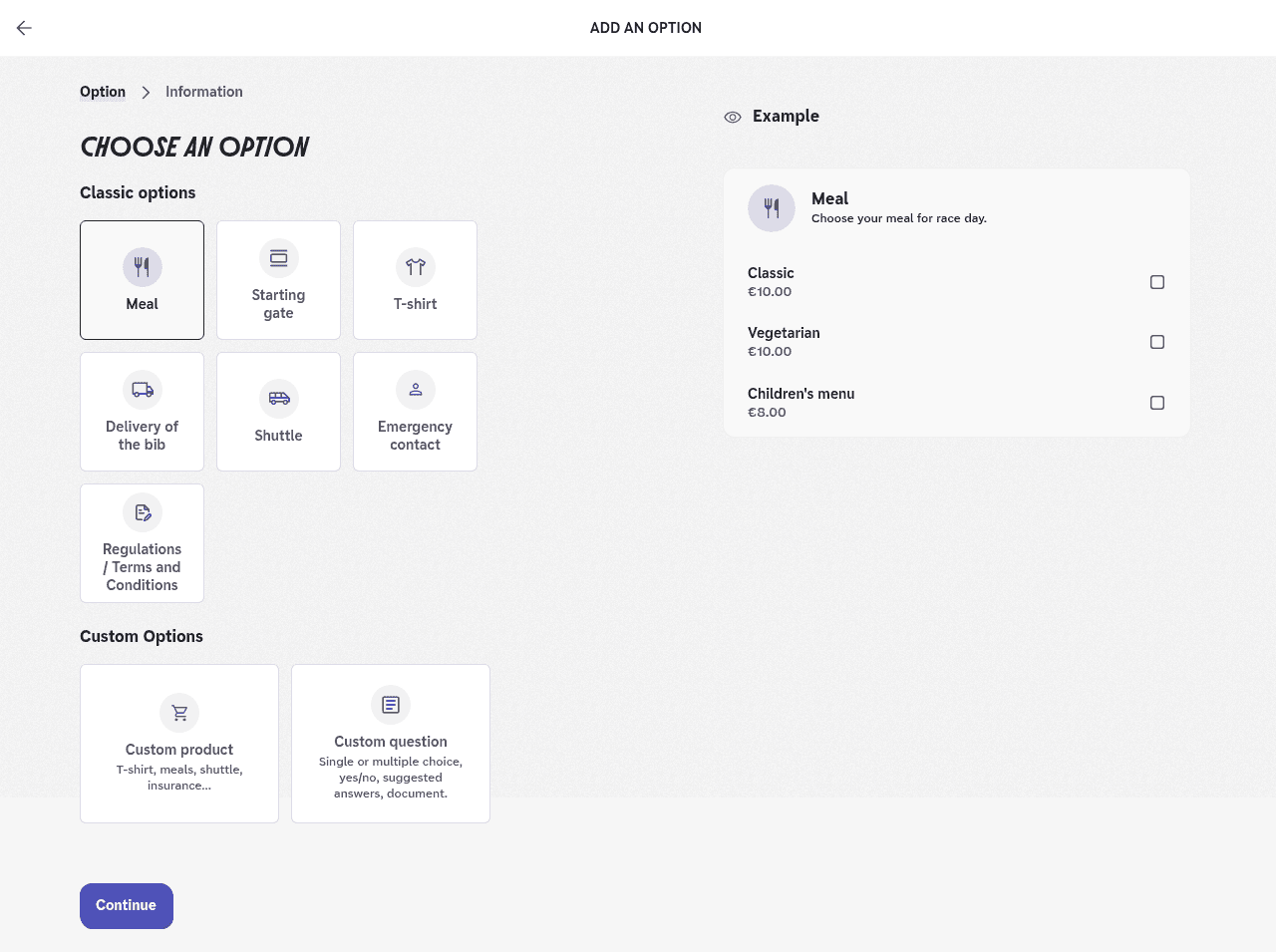
Pick a card. Under Classic options (Meal, Starting gate, T-shirt, Delivery of the bib, Shuttle, Emergency contact, Regulations / Terms and Conditions), the next form opens prefilled with an example to adapt. Under Custom Options, Custom product sells a product (T-shirt, meals, shuttle, insurance...) and Custom question asks a question.
The Example panel on the right shows what the participant will see. Click Continue.
Add a paid product
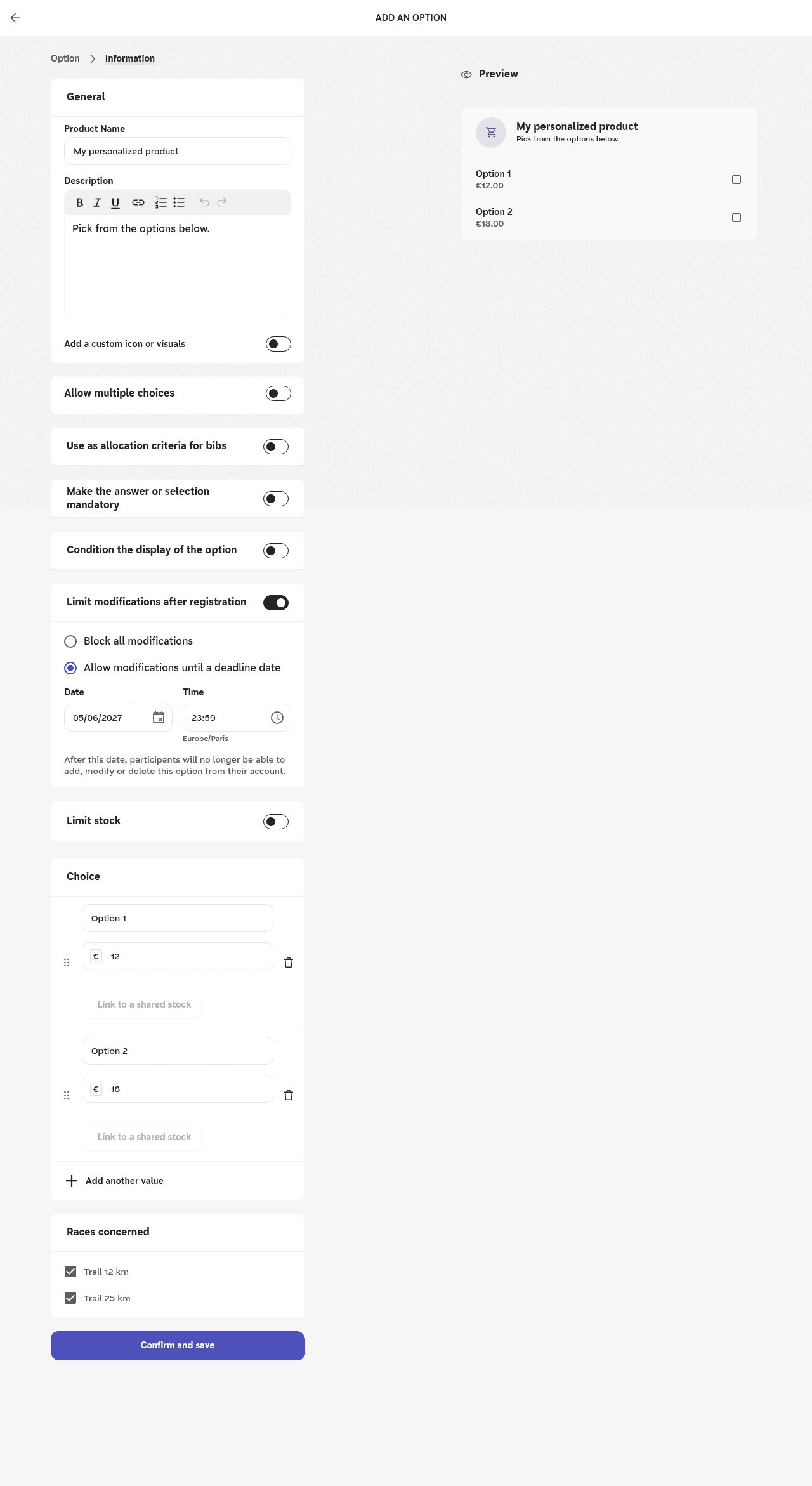
Fill in the Product Name and its Description. To add an icon or photos, turn on Add a custom icon or visuals.
Under Choice, create one line per variant (a size, a formula). Enter its Title and its Price, in the edition's currency. A price of 0 is accepted.
Click Add another value to add a choice. Drag a line's handle to change the order, or click the bin to remove it.
Manage stock, quantities and races
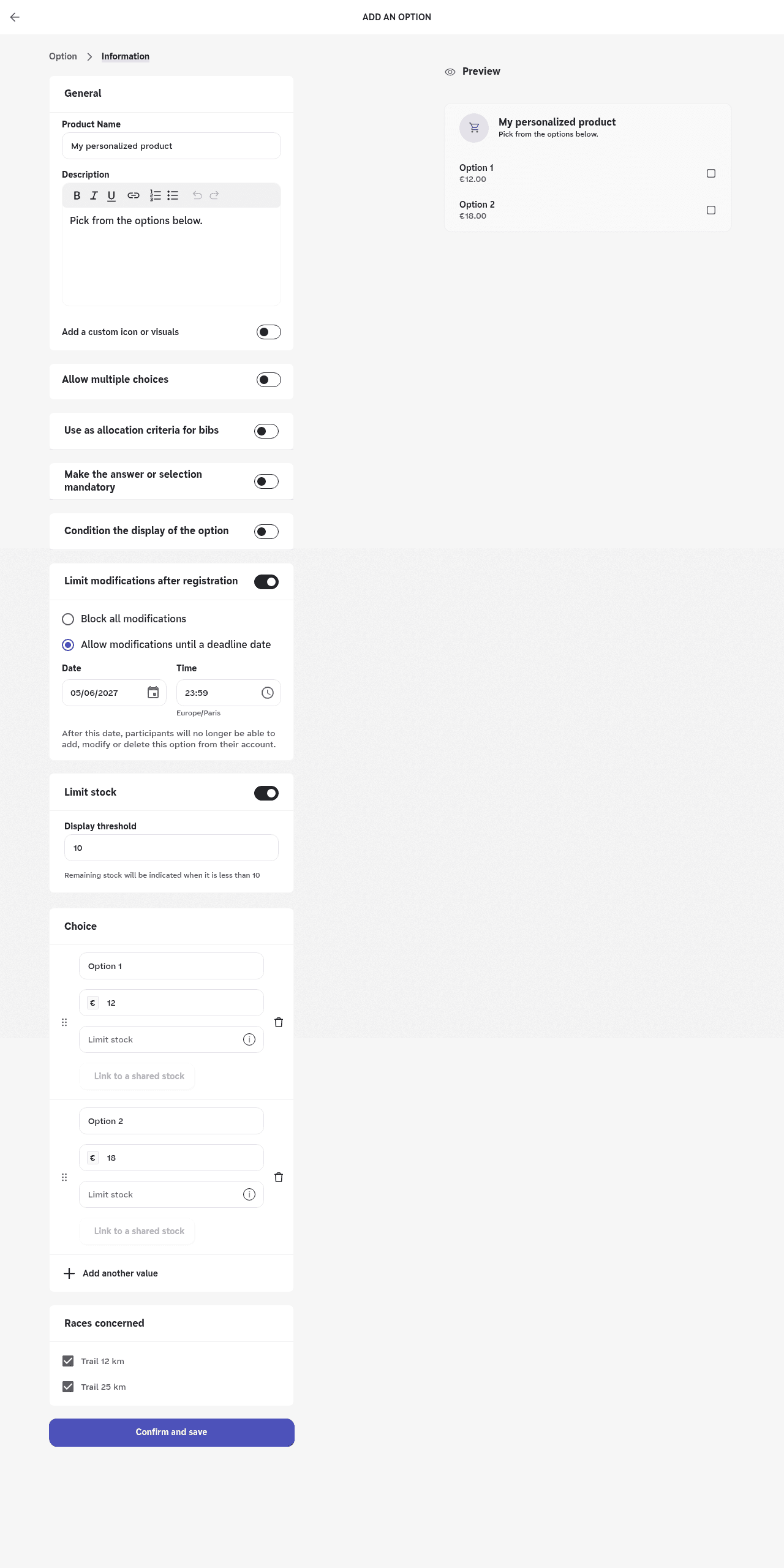
To sell a limited number of units, turn on Limit stock. Enter the stock of each choice in the Limit stock field under its price. The Display threshold (10 by default) sets when the participant sees the remaining stock.
To let participants choose a quantity, turn on Allow multiple choices: each choice gets a quantity selector.
Under Races concerned, tick the races where the product is sold. All of them are ticked by default.
Set the shared options described below, then click Confirm and save.
Add a question
Click Custom question, then Continue.
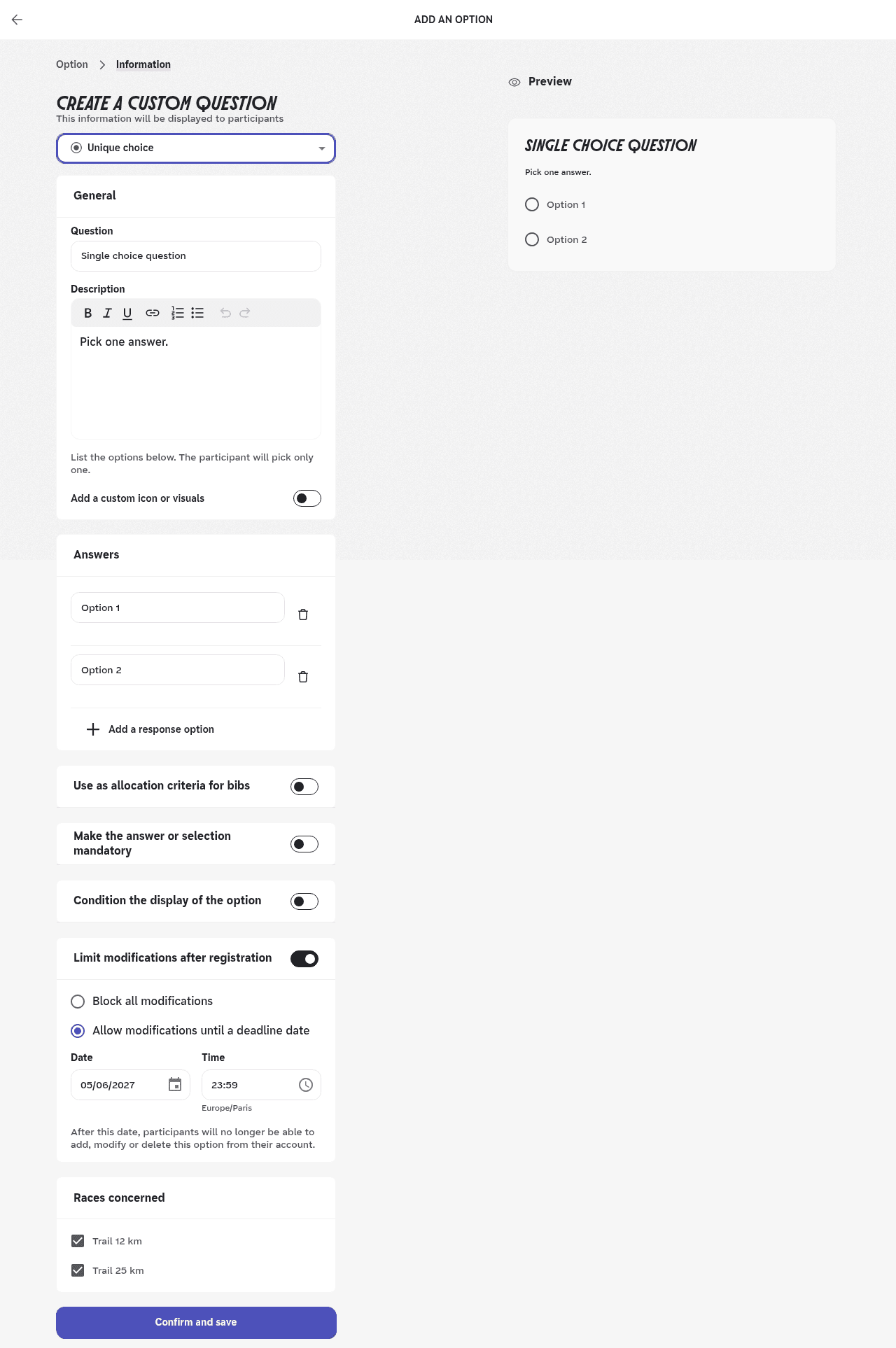
In Select a format, choose the question format (see the table below). You cannot change it after saving.
Write the Question and, if needed, a Description.
For a single or multiple choice, list the possible answers under Answers, and click Add a response option to add more. You need at least two.
Under Races concerned, tick the races, set the shared options, then click Confirm and save.
Question formats
A question never makes the participant pay: to sell something, use a product.
| Format | What the participant does |
|---|---|
| Short question | They answer in one line. |
| Suggested answers | They pick from a list, or type their own answer. The list grows with the answers of confirmed registrations. It starts empty and is shared by every race where you add the question. |
| Unique choice | They pick a single answer among those you list. |
| Multiple choice | They pick several answers. |
| On/off | They answer yes or no with a switch. The default answer is no. |
| Additional document | They attach a file (PDF, PNG or JPG) to their registration. |
Settings shared by products and questions
| Setting | Effect |
|---|---|
| "Make the answer or selection mandatory" | The participant cannot continue without answering or choosing. For a product, "Allow explicit refusal" adds a choice to decline the option without buying anything. |
| "Condition the display of the option" | The option only appears if a condition is met. Click "Add a display condition", then choose a criterion: role of the participant in their team, age, licensed participant, gender, participant belonging to a group, answer to a question from the form, product selected. You cannot use the same criterion twice. |
| "Use as allocation criteria for bibs" | The answer feeds the bib allocation rules. This setting disappears when you allow multiple choices on a product. |
| "Limit modifications after registration" | On by default. "Block all modifications" closes the option as soon as the participant registers. "Allow modifications until a deadline date" sets a date and a time, in the edition's time zone: after that, the participant can no longer add, modify or delete the option from their account. The proposed date is set 7 days before the start of the first race. When turned off, no limit applies. |
| "Races concerned" | The races where the option is offered, all ticked by default. You need at least one. |
Check the result
Click Preview registration, at the top of the Options page, to go through the registration process as a participant.
After Confirm and save, you go back to the list of options, with no confirmation message: check that your option is listed. Only active options are offered to participants, in the order of the list.
Nothing happens when I click Confirm and save
Check that at least one race is ticked under Races concerned, and that every Title and every Price is filled in. If you limit the stock, it must be greater than 0 and at least equal to the number of options already sold.
With read-only access to the edition, saving is refused without a message. Ask a user who manages access to give you the right to configure the edition.
I can't find how to delete an option
An option cannot be deleted. Turn it off with the switch on its line, or archive it from the line menu: participants no longer see it, and the answers and purchases already recorded are kept.
If the option is shared between several editions, turning it on, off or archiving it applies to all of them.
A choice's bin is greyed out
A choice that has already been sold cannot be deleted, nor can a choice linked to a shared stock. To stop selling it, limit its stock to the number of units already sold.
The deadline field is greyed out
The edition must have at least one race with a start date. Add a race, then come back and edit the option.
A participant can no longer edit their option
The deadline has passed, or the option is on Block all modifications. Only changes made from the participant's account are affected: the initial registration is never blocked. You can edit the registration from the dashboard, after a confirmation.
I want to change the format of a question
The format cannot be changed after saving. Create a new question in the right format, then archive the old one.